Posts

Showing posts with the label Visual Studio

Popular Visual studio add-ons/plugins

SQL Prompt   for Database Projects (works inside your SQL Management Studio as well) SmartPaster   - (FREE) Copy/Paste code generator for strings   AnkhSvn  - (FREE) SVN Source Control Integration for VS.NET VisualSVN Server   - (FREE) Source Control ReSharper  - IDE enhancement that helps with refactoring and productivity CodeRush  - Code gen macros on steroids Refactor  - Code refactoring aid CodeSmith  - Code Generator PowerCommands  is a Microsoft-created plugin that offers a variety of new features that one would think probably should have been in Visual Studio in the first place. GhostDoc  - (FREE) Simple code commenting tool DXCore  (FREE) and its many awesome plugins:  DxCore Community Plugins ,  CR_Documentor , CodeStyleEnforcer ,  RedGreen TestDriven.Net  - (FREE/PAY) Unit Testing Aid Reflector  - (PAY) Feature rich .Net Disassembler  Reflector AddIn's Web...

Change default browser in visual studio

Image
Step 1: R ight-click on an ASPX page within a Web Project and click "Browse With..." Step 2:  From this dialog you can click Set Default Step 3: You  can add other browsers, like Google Chrome to this dialog via Add

Visual Studio.NET metadata files and the function they serve when integrated with ClearCase

The following is a living list of information about the various metadata files associated with Visual Studio.NET and ClearCase. Folder Hierarchy The Visual Studio.NET (VS.NET) and ClearCase metadata exist in a simple hierarchy of folders. The first folder is the Solution folder and is named after the VS.NET Solution. The Solution folder contains one *.SLN file (see below), at least one *.SUO file (see below), and zero or more VS.NET Project folders. Project folders are named after their VS.NET Projects. The contents of the Project folders vary, but they always contain one *.CSPROJ file (see below) per Project folder, and a *.WEBINFO file (see below) if the Project is a web (ASP.NET) project. SLN (Solution File) The VS.NET Solution metadata is stored in the *.sln file. The Solution and all the Projects associated with it can be opened within VS.NET by opening the *.sln file. It is a text file and can be edited. It is version controlled. CSPROJ (Project File) The metadata file associate...

Visual Studio Extensions

Improve your visual studio performance using the power tool. Key features in Productivity Power Tool are: 1.Quick Find. 2. Enhanced Scroll-bar. 3. Solution Navigator . 4. Tab Well UI. 5. Searchable Add Reference Dialog. 6. Tools Options Support. 7. Quick Access. 8. Auto Brace Completion. 9. Triple Click. 10. Fix Mixed Tabs. 11. Ctrl + Click Go To Definition. 12. Align Assignments. 13. Move Line Up/Down Commands. 14. Column Guides. 15. Colorized Parameter Help. Download the tool from the below mentioned path........ http://visualstudiogallery.msdn.microsoft.com/d0d33361-18e2-46c0-8ff2-4adea1e34fef?SRC=Home          

Visual Studio Code Samples extension

http://visualstudiogallery.msdn.microsoft.com/4934b087-e6cc-44dd-b992-a71f00a2a6df

Multiple Start-Up Projects in "Visual Studio"

Image
Right Click on solution and select theSet StartUp projects as shown below. Select the multiple projects radio button as shown below and set the active action to "start" for selected projects.

How to find the changed files using Visual Studio.

Image
Step 1: Open the Visual Studio 2010 as shown below. Step 2:Expand the Microsoft Windows SDK Tools and select "WinDiff" as shown below Here we can load two different files or projects to compare.......................

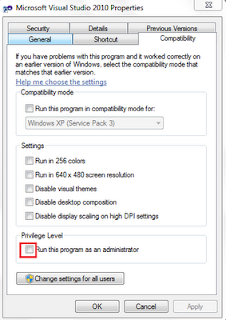
RUN VISUAL STUDIO AS ADMINISTRATOR

Image
Step 1: Create visual studio shortcut on the desktop. Step 2: Right click on the shortcut and go to properties and select compatibility tab and select "Run this program as administrator" checkbox.[Refer below figure for reference]. Step 3: Go and click the shortcut visual studio will be opened with administrator privileges.

What is the Difference Between Build and Re-Build in visual Studio .Net?

Build  means compile and link only the source files that have changed since the last build, while  Rebuild  means compile and link all source files regardless of whether they changed or not. Build is the normal thing to do and is faster. Sometimes the versions of project target components can get out of sync and rebuild is necessary to make the build successful. In practice, you never need to  Clean .